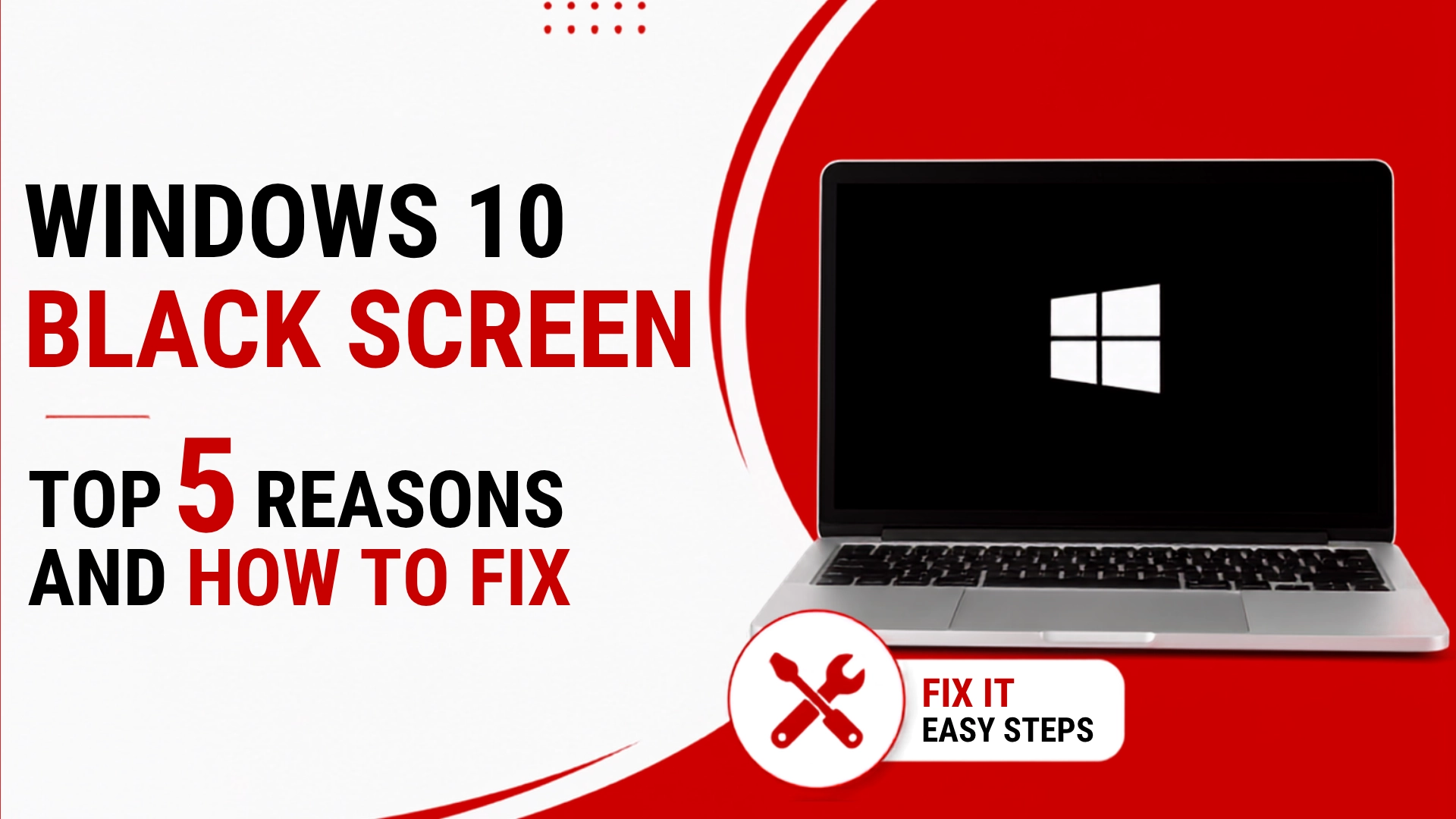
Windows 10 Black Screen is a common problem with windows update. is your windows causing you to loose productive time and not work on your job functions properly?
Incorrectly upgrading / updating windows can cause some issues.. If your screen gets black with a Cursor or without a cursor displaying and you are not able to proceed, the most likely issues of a black screen problem are listed. This article will help you to resolve it
Below are some of the most frequent causes of a Windows 10 black screen
A Windows update gone wrong
A faulty startup application
Outdated or faulty drivers
Connection issues between your PC and monitor
Software defects
Hardware defects
Problems with your graphics card
Loose cables connected to your PC or laptop
How to solve a Windows 10 black screen problem?
1.Repair Black Screen in Safe Mode
black screen issues can be fixed in Safe Mode, in order to go in Safe mode, restart your Microsoft PC
restart the system and hold F8 or Shift and F8 down in this safe mode driver and hardware issues leading to a black screen of issues problems can be fixed
when you are in Safe Mode click on the advanced options button, then you can Troubleshoot>Advanced options > Startup Settings > Restart. This will resolve startup issues and normal windows will start again
2. Check the Power Supply Faulty power supply cloud be reason for black screen. So, you will have to diagnose if the black screen is a PSU issue or not. Check if there is any misbehaving hardware component. And if every component is working good, then the power supply is most likely the issue. Hence, the solution would be to replace the power supply entirely. But before you do this, we suggest that you go through the other fixes first.
3. Windows Reinstallation: Reinstall of windows may help fixing the black screen problem. But before uninstalling Windows ensure that you have saved all data and proceed for reinstalling Windows.
4. Wake Up Your Display
Another reason of the laptop black screen of death is that the system isn’t detecting the display. And fortunately, there is a simple solution for that which is making the display to wake up.
Below are the simple step you have to follow : ▪ Press the Windows key and then hold down Ctrl + Shift + B at the same time. ▪ It will force the display to wake up, and the problem might get resolved.
5. Reinstall the Video drivers The main cause of the issue is a faulty Video Card or Video drivers. For the Windows 10 black screen issue, we have to reinstall the video card Drivers.
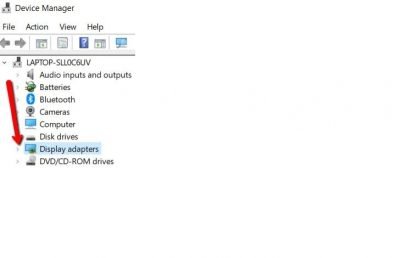
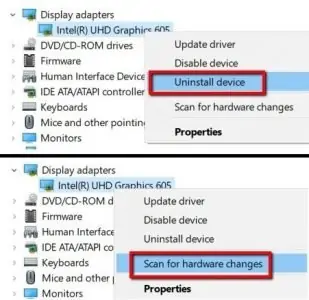
Here are Screenshots for your reference with images for how to reinstall Video drivers.
Step 1: Open Device Manager from the Admin account and select the Display Adapters. There you will see the adapter
Step 2: Right-click on the adapter and choose the “Uninstall Device” option. Wait for the device to uninstall.
Step 3: Again, right-click on the device and choose “Scan for hardware changes” so that the driver will appear for reinstallation.
And if you still have connected multiple display adapters with the system, consider disconnecting all of them to ensure that the output is being routed to the right display to check if your Windows 10 Black Screen issue is solved. In case not, check out our IT Support Services to have a qualified Microsoft Engineer assist you.
Conclusion
A Windows 10 black screen can be caused by several issues, including display drivers, Windows updates, startup applications, cables, connected devices, software problems, or hardware faults. Starting with simple troubleshooting steps such as checking connections, waking the display, using Safe Mode, and reviewing display drivers can help identify the cause without immediately reinstalling Windows.
If the problem continues or affects business productivity, professional technical assistance can help diagnose the underlying issue and restore the system more efficiently.
A black screen can occur because of display driver problems, incorrect display output, Windows startup issues, loose cables, external devices, or hardware problems. Checking the display connection and restarting the graphics driver can be useful first steps.
A black screen with a cursor may be related to Windows Explorer, startup processes, or display drivers. Try resetting the graphics driver with Windows + Ctrl + Shift + B and, if necessary, troubleshoot the system through Safe Mode.
Yes, a problematic update or incompatible driver can sometimes contribute to display or startup problems. If the issue began immediately after an update, troubleshooting through Windows recovery options or Safe Mode may help identify the cause.
Reinstalling Windows should generally be considered a last resort. Try simpler troubleshooting steps such as checking cables, Safe Mode, display drivers, external devices, and recovery options before reinstalling the operating system.
Consider professional IT support if the black screen continues after basic troubleshooting, affects multiple devices, returns repeatedly, or appears to be related to hardware, drivers, or a wider business IT issue.
Get a Free IT Consultation
Your goals. Our expertise. Perfect solutions.
Cybersecurity & EDR Solutions
Cloud & Microsoft 365 Migration
IT AMC & Managed Support
Office IT Setup & Relocation
17+
Years in Dubai
999+
Clients Served
4.9
Google Rating
SPEAK WITH AN EXPERT
Fill in your details
Your information is secure. We reply within 2 hours.