Blogs by Chipin

Windows 10 End of Life

Windows 10 End of Life

Windows 10 End of Life: Last Chance to Upgrade Before It’s Too Late

The countdown has officially begun. Microsoft has announced the end of life (EOL) for Windows 10, and businesses across the globe are now facing a critical decision-upgrade or risk security, performance, and compliance issues.

If you’re still running Windows 10, this is your last chance to upgrade before support ends. Whether you’re a business owner, IT professional, or beginner, understanding what this means-and what to do next-is crucial.

In this guide, we’ll break down everything you need to know about Windows 10 End of Life, its impact, risks, and how transitioning to modern solutions like Windows Server and Windows 11 can future-proof your business.

Why and when Microsoft ends the support for older versions?

Upgrade to windows 11

Security Maintenance Limitations
As cyber threats continue to evolve, maintaining robust security on an older operating system becomes increasingly difficult. Windows 10 was built for the technology standards of its time, but today’s sophisticated malware, ransomware, and cyberattacks require more advanced security capabilities. Continuing to support aging software limits Microsoft’s ability to deliver modern protection, making it less secure for businesses and individual users.

Focus on Innovation
Microsoft follows a defined product lifecycle to ensure it can invest in developing newer technologies rather than maintaining legacy operating systems indefinitely. By ending support for Windows 10, Microsoft can focus its engineering resources on enhancing Windows 11 with improved security, artificial intelligence (AI) features, better performance, and productivity tools that meet the needs of modern businesses and users.

Hardware and Software Evolution
Computer hardware and business applications have advanced significantly since Windows 10 was introduced. Modern processors, storage technologies, graphics capabilities, and security chips such as TPM 2.0 are designed to work with newer operating systems. Supporting older software while ensuring compatibility with the latest hardware becomes increasingly challenging, making Windows 11 the better platform for future technology.

Encourages Businesses to Upgrade
Microsoft’s product lifecycle policy encourages organizations to move to supported operating systems that receive regular security updates, performance improvements, and new features. Upgrading to Windows 11 helps businesses reduce cybersecurity risks, maintain compliance with industry standards, improve system reliability, and take advantage of the latest innovations. Planning the transition before Windows 10 reaches end of support ensures minimal disruption and a smoother upgrade experience.

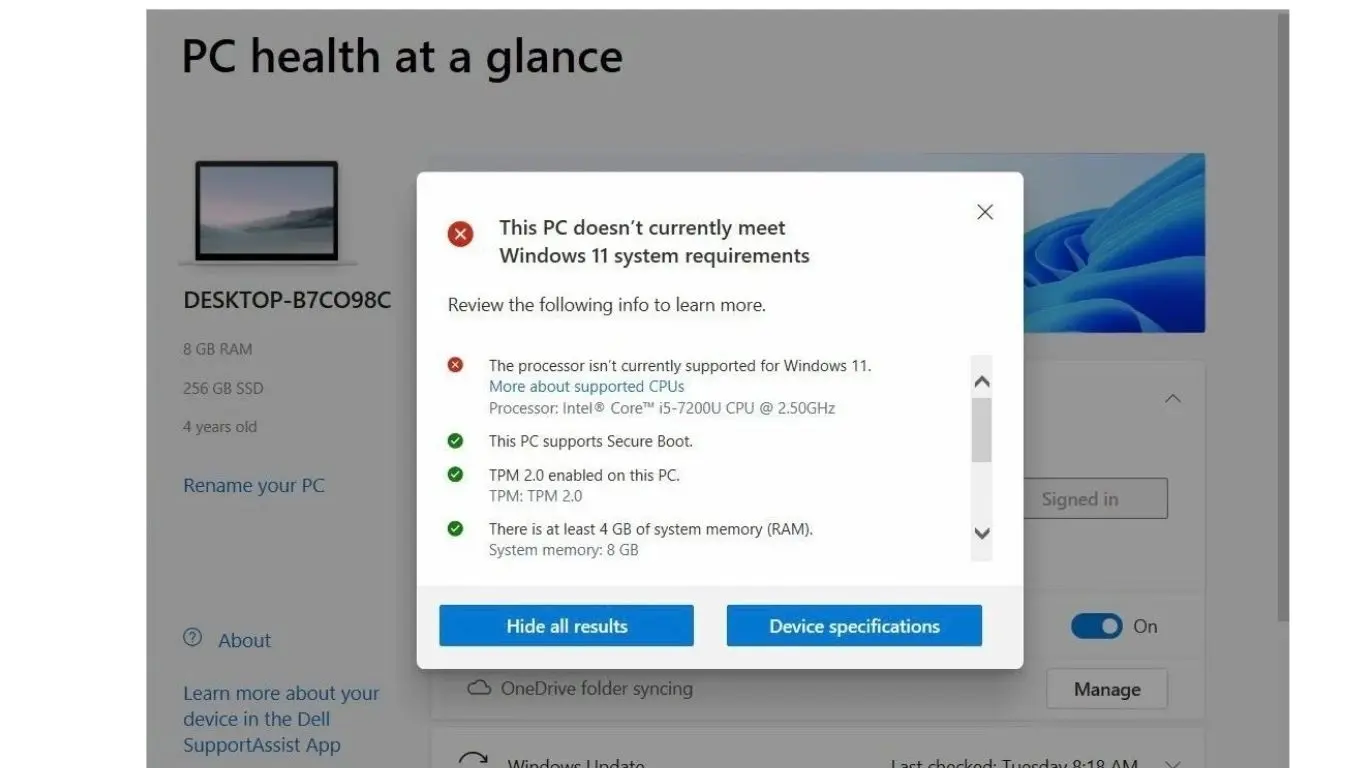
PC Health Check: Can Your System Run Windows 11?

What is PC Health Check?

Microsoft’s PC Health Check tool helps determine if your system meets Windows 11 requirements.

What It Checks:

  • Processor compatibility
  • RAM (minimum 4GB)
  • Storage (minimum 64GB)
  • TPM 2.0 availability
  • Secure Boot capability
PC Health Check

Benefits of Moving to Windows Server

  • Switching to a windows server environment provides long-term advantages: 
  • Enhanced Security- Enterprise-grade protection against cyber threats. 
  • Scalability- Easily expand your IT infrastructure as your business grows. 
  • Centralized Management- Control users, systems, and data from a single platform. 
  • Cost Efficiency- Reduce maintenance and operational costs over time.

What Happens After Windows 10’s End Of Life (EOL)?

When Windows 10 reaches its EOL in 2025, it will continue to function as normal, but you’ll no longer receive regular security updates, bug fixes, or new features. This could have several consequences.

Security Risks

Without regular updates, your system becomes vulnerable to emerging security threats. Cybercriminals often target outdated systems because they know the vulnerabilities in older operating systems won’t be patched. This increases your risk of data breaches, malware infections, and other malicious attacks.

Over time, more and more software developers will stop supporting Windows 10, focusing their efforts on Windows 11. This means your apps may no longer receive updates, and new applications may not be compatible with Windows 10.

Microsoft won’t introduce new features or enhancements for Windows 10 once it reaches EOL. Users will continue using the same version they have until they choose to upgrade to a newer operating system.

How to Prepare for Windows 10 End of Life

As Windows 10 approaches its end of life, businesses and individuals must take proactive steps to avoid security risks, compatibility issues, and operational disruptions. Preparing early ensures a smooth transition to modern systems like Windows 11 or secure Windows Server environments, helping you maintain performance, data protection, and business continuity.

Steps to Prepare for Windows 10 End of Life

  • Audit Your Systems: Identify all devices running Windows 10. 
  • Audit Your Systems: Identify all devices running Windows 10. 
  • Check Compatibility: Determine if systems can upgrade to Windows 11
  • Plan Migration: Decide between upgrading or moving to a windows server environment.
  •  Backup Data: Ensure all critical data is securely backed up.
  • Partner with Experts: Work with professionals offering managed windows server and windows server hosting. 

Key Features of Windows 11 (What’s New):

Windows 11 comes with a centered start menu and taskbar, rounded corners, and a cleaner design. These changes provide a more modern and streamlined experience, making it easier to navigate

 Windows 11 is designed to take full advantage of modern hardware, offering faster startup times and improved performance for multitasking. The system is also optimized to run more efficiently on newer processors.

Security is one of the biggest focuses of Windows 11. The OS requires a Trusted Platform Module (TPM) 2.0 chip, which provides an added layer of protection against malware and ransomware attacks. It also includes Windows Hello and BitLocker for enhanced data encryption.

Windows 11 brings a host of new gaming features, including Direct Storage and Auto HDR, which significantly improve loading times and graphics quality in supported games.

Features like Snap Layouts and Snap Groups make it easier to manage multiple windows, improving productivity and organization on your desktop.

Upgrade to Windows 11

Upgrade to windows 11

Technology is evolving rapidly, and keeping your operating system up to date is essential for maintaining security, performance, and business continuity. With Microsoft officially announcing the Windows 10 End of Life, organizations and individual users need to start planning their transition to a supported operating system.

Once Windows 10 reaches its end of support, Microsoft will no longer provide regular security updates, bug fixes, or technical assistance. Continuing to use an unsupported operating system can expose your devices to cybersecurity threats, compatibility issues, and reduced performance over time.

Upgrading to Windows 11 is more than a routine software update—it’s an investment in a secure, modern, and future-ready computing experience. Designed with advanced security features, improved performance, and enhanced productivity tools, Windows 11 helps businesses and individuals stay protected while working more efficiently.

In this guide, we’ll explain what the Windows 10 End of Life means, the risks of delaying an upgrade, the benefits of moving to Windows 11, and how your organization can make the transition smoothly with minimal disruption.

Why Upgrade to Windows 11?

Windows 11 is built for today’s modern workplace, offering enhanced security, improved performance, and a more intuitive user experience. Upgrading ensures your business is ready for the latest applications, productivity tools, and future Microsoft updates.

Advanced Security – Windows 11 includes built-in security features such as TPM 2.0, Secure Boot, and advanced encryption to safeguard your devices from malware, ransomware, and evolving cyber threats.

Better Performance – Enjoy faster boot times, improved memory management, and optimized system performance, enabling employees to work more efficiently with fewer interruptions.

Modern User Experience – A redesigned interface with a centered Start menu, streamlined navigation, and an intuitive layout creates a cleaner, more productive workspace for users.

Enhanced Productivity – Boost efficiency with powerful features like Snap Layouts, Virtual Desktops, improved multitasking, and seamless integration with Microsoft 365 and collaboration tools, helping teams stay organized and connected.

Steps to Upgrade from Windows 10 to Windows 11

Upgrading doesn’t have to be complicated. By following a structured approach, businesses can ensure a smooth transition to Windows 11 with minimal downtime and maximum security.. Follow these steps for a smooth transition:

Check Compatibility

Run the PC Health Check tool to confirm your system can support Windows 11.

Backup Your Data

Always create a backup of important files before starting the upgrade.

Update Your Current System

Ensure Windows 10 is fully updated to avoid installation issues.

Download Windows 11

Go to Settings →Windows Update → Check for updates and download Windows 11 if available.

Install the Upgrade

Follow the on-screen instructions. The process may take some time depending on your system.

Verify Everything Works

After installation, check drivers, applications, and system performance.

Why Choose ChipIn Corp for Windows Server Solutions

At Chipin Corp, we deliver reliable and secure Windows Server solutions tailored to your business needs. Our services include:

  • Reliable Windows Server Services in Dubai for seamless business operations.
  • Advanced Windows Server Infrastructure across the UAE designed for performance, security, and scalability.
  • Dedicated Windows Server Support from experienced IT professionals to ensure maximum uptime.
  • Scalable Windows Server Hosting Solutions that grow with your business requirements.

With our expertise, your organization benefits from a secure, high-performing, and future-ready IT infrastructure that supports productivity and business growth.

Conclusion

Windows 10 has served us reliably for nearly a decade, but as its End of Life (EOL) approaches, it is the ideal time to transition to the more advanced Windows 11. Upgrading to Windows 11 provides enhanced performance, robust security features, and improved productivity tools, ensuring your system remains efficient and future-ready for evolving technological demands. Taking proactive steps now will help you avoid last-minute challenges- be sure to verify your device’s compatibility and plan your upgrade accordingly.

For those seeking more detailed insights, best practices, and step-by-step guidance on upgrading to Windows 11, you are encouraged to explore additional resources and professional updates available on LinkedIn.

For a smooth and secure transition to Windows 11, we recommend seeking professional assistance-please visit the following link to get started with expert support IT AMC Dubai and Windows Server Dubai​. 

When is Windows 10 reach its End of Life (EOL)?

Windows 10 will reach its End of Life on October 14, 2025. After that, Microsoft will no longer able to provide security updates, some bug fixes, or new features and as a result Windows 10 will be more vulnerable to security threats.

Yes, Your PC will be still functional even after Windows 10 reaches its EOL. No, your PC will continue to function even after Windows 10 reaches its EOL. However, it will be still risky for the pc without security updates as chances of cyber threats will increase, and you may encounter software compatibility challenges as developers begin to prioritize Windows 11. 

Upgrading to Windows 11 will have additional advantages which include enhanced security features such as TPM 2.0, modern user interface, and more improved multitasking tools. It’s designed to run smoothly on latest hardware, ensuring better efficiency and long-term support.

To check if your PC runs smoothly with Windows 11, you can use Microsoft’s PC Health Check Tool. Just make sure that your PC has basic requirements which includes 64-bit processor, 4GB RAM, TPM 2.0 and secure Boot compatibility.

If you don’t upgrade to Windows 11, your PC will still work but it will not get any further security updates which will make your system more prone to Viruses, malware and cyberattacks. Over a period, Applications and Software may stop supporting Windows 10 and will affect its usability and performance.

Leave a Reply

Your email address will not be published. Required fields are marked *