Blogs by Chipin

The Ultimate Guide to Email Migration

The ultimate Guide to email migration

The Ultimate Guide to Email Migration - Moving from Zoho & cPanel to Microsoft 365

In today’s fast-paced business environment, email is far more than just a communication tool—it’s the backbone of collaboration, security, and productivity. Yet, many organizations still rely on basic or semi-professional email systems such as Zoho Mail or cPanel-based hosting emails. While these solutions may work in the early stages of a business, they often become limitations as the organization grows.

The ultimate guide to email migration is designed to help you understand why and how you can perform email migration to Microsoft 365 successfully. You can use this guide to learn about migration of cPanel email to office365 or Zoho to Microsoft 365 migration process, and learn how to do it smoothly with minimal disruption.

If your business is still using basic email platforms like Zoho or cPanel hosting emails, you're likely facing limitations in security, collaboration, and scalability. This guide will walk you through everything you need to know about email migration to Microsoft 365, and how to do it safely and efficiently.

The Ultimate Guide to Email Migration

Email Migration refers to the process of transferring your email data from one platform like Zoho Email, cPanel Email for even Google to another platform such as Microsoft Office 365.  This is a crucial part as one mistake and you can loose all access to your email data. the process generally includes the below areas, but can also have additional areas depending your setup.

  • Emails and attachments
  • Contacts and calendars
  • Folder structures and archives
  • Permissions and user settings

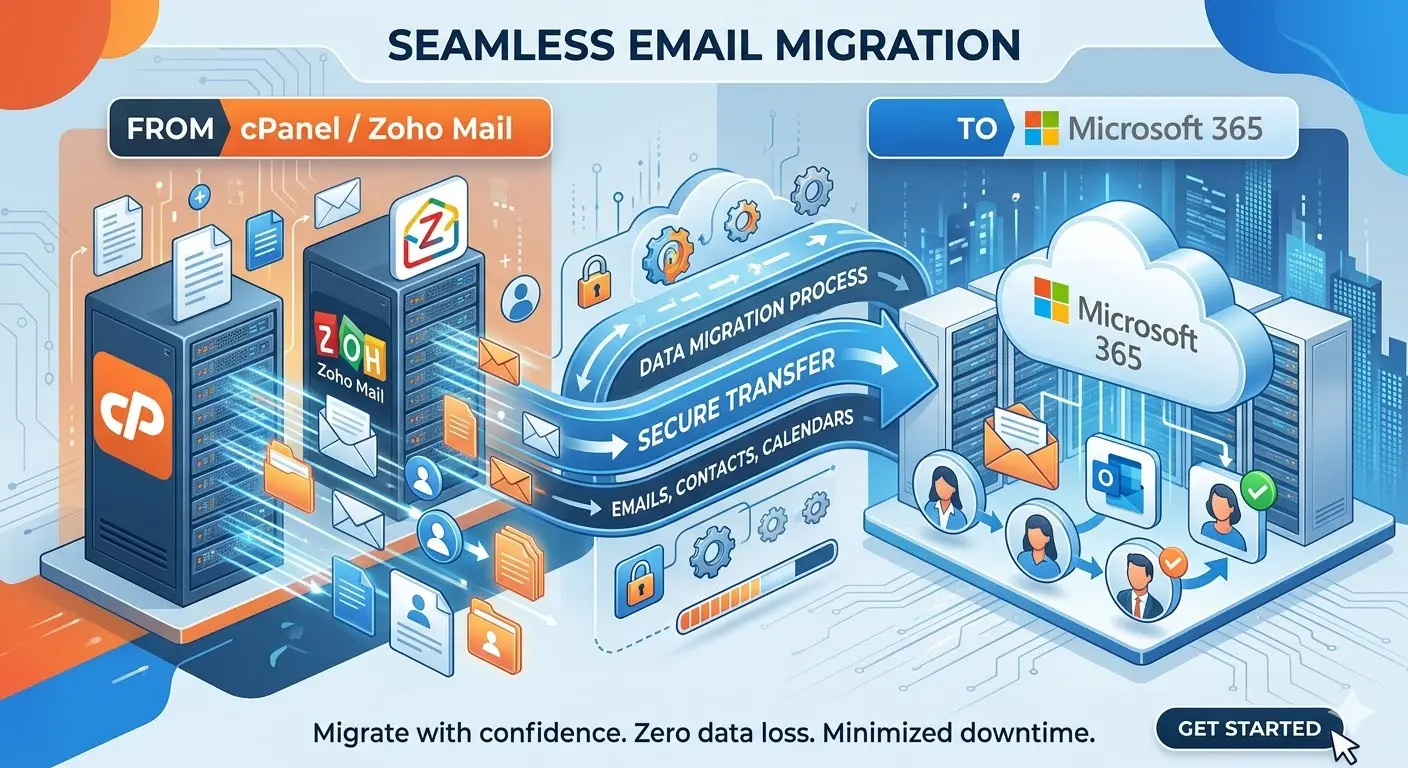
Professional migration ensures that all of this data moves securely with zero data loss and minimal downtime — so your business keeps running smoothly during transition.

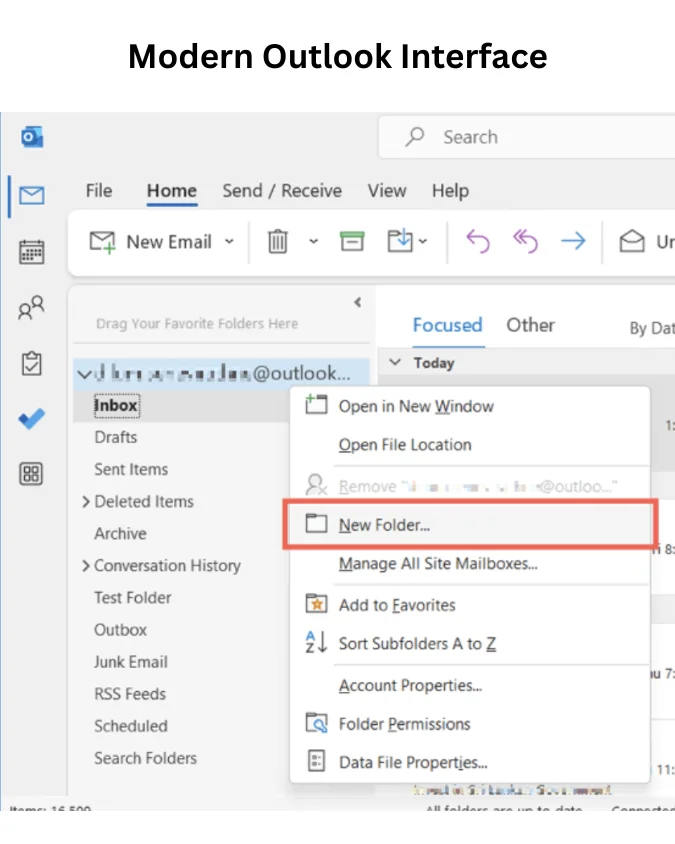
Modern Outlook Interface1

Why Businesses Are Migrating to Microsoft 365

Limited Collaboration Capabilities​

Let’s start with a simple truth: not all email systems are built for scale.

Zoho and cPanel email systems are primarily email-focused. While Zoho offers some collaboration tools, they often lack the seamless integration and depth required for growing teams.

With Microsoft 365, email becomes part of a larger ecosystem including:

  • Microsoft Teams (chat & meetings)
  • SharePoint (document management)
  • OneDrive (cloud storage)
  • Outlook (advanced email & calendar)
Security Concerns​

Security is one of the biggest reasons businesses migrate. Common challenges with basic email systems:

  • Limited spam filtering
  • Lack of advanced threat protection
  • Weak or no multi-factor authentication (MFA) enforcement
  • Poor compliance features

Microsoft 365 offers:

  • Advanced Threat Protection (ATP)
  • Data Loss Prevention (DLP)
  • Conditional Access Policies
  • Enterprise-grade encryption

Scalability Issues​

As your company grows you start facing the below issues without realizing before it becomes too late. issues such as

  • Mailboxes increase
  • Storage requirements expand
  • Compliance needs become stricter

cPanel-based emails especially struggle here due to:

  • Storage limits tied to hosting
  • Performance bottlenecks
  • Manual management overhead

Reliability & Uptime​

Microsoft 365 guarantees:

  • 99.9% uptime SLA
  • Globally distributed data centers
  • Automatic failover systems

Types of Email Migration

Understanding the Right Email Migration Approach for Microsoft 365

Before you begin your journey to Microsoft 365, one of the most critical steps is choosing the right type of email migration. This decision directly impacts your downtime, user experience, data integrity, and overall success of the project.

Many businesses moving from platforms like Zoho Mail or traditional cPanel-based hosting underestimate this step and that often leads to delays, missing data, or user disruption. In this guide, we’ll break down the four primary email migration methods so you can confidently decide what works best for your organization.

IMAP Migration (Most Common for Zoho & cPanel)

If you're currently using basic email hosting like Zoho or cPanel, IMAP migration is typically the most practical and widely used method for email migration to Microsoft 365

What is IMAP Migration?

IMAP (Internet Message Access Protocol) migration allows you to transfer email data only from your existing mail server to Microsoft 365.

Key Features

  • Migrates emails only ✔️
  • Does NOT migrate contacts, calendars, or tasks ❌
  • Works with most email systems supporting IMAP ✔️
  • Simple and cost-effective ✔️

When Should You Use IMAP Migration?

IMAP migration is ideal for:

  • Small to mid-sized businesses
  • Companies using Zoho Mail or cPanel email
  • Organizations without heavy reliance on calendars or shared contacts
  • Businesses looking for a quick and budget-friendly migration

Limitations to Consider

  • While IMAP migration is easy to implement, it comes with some limitations:
  • No migration of calendars or contacts
  • Folder structures may not always map perfectly
  • Requires manual setup for users post-migration

👉 Pro Tip: Many companies pair IMAP migration with manual or third-party tools to migrate contacts and calendars separately.

Cutover Migration (All-at-Once Approach)

If you want a fast and complete switch from cPanel email to Office 365, cutover migration might be the right choice. This is a bit complicated and you should try and avail Email Migration Services from a reputed IT service provider.

What is Cutover Migration?

Cutover migration moves all mailboxes from your current system to Microsoft 365 in one go. Once complete, all users start using the new system immediately.

Key Features

✔️ Full migration in a single phase

✔️ Minimal coexistence between old and new systems

✔️ Faster overall migration timeline

Best Suited For

Small organizations (typically under 150–200 users)

Businesses that want a clean break from their old system

Companies with minimal dependency on legacy systems

Advantages

Simple to plan and execute

No need to manage two systems simultaneously

Faster user adoption of Microsoft 365

Challenges

Requires careful timing to minimize downtime

Higher risk if not planned properly

Limited flexibility once migration begins

👉 Real-World Insight: Many SMEs moving from on-prem or basic hosting choose cutover migration for its simplicity and speed.

Staged Migration (Batch-Based Approach)

For growing businesses or organizations with a larger user base, staged migration offers a more controlled transition.

What is Staged Migration?

Staged migration allows you to migrate users in batches over time, instead of moving everyone at once.

Key Features

  • Migration in phases (department-wise or group-wise) ✔️
  • Reduced risk compared to cutover ✔️
  • Better control over user onboarding ✔️

Ideal For

  • Medium to large organizations
  • Businesses with multiple departments
  • Companies that want to test migration in phases before full rollout

Benefits

  • Lower operational risk
  • Easier troubleshooting
  • Flexible scheduling

Considerations

  • Requires more planning and coordination
  • Temporary coexistence between systems
  • Slightly longer project timeline

👉 Best Practice: Start with a pilot group (like IT or admin users) before rolling out to the entire organization.

Hybrid Migration (Enterprise-Level Solution)

Hybrid Migration (Enterprise-Level Solution)

For large enterprises or organizations with complex IT environments, hybrid migration is the gold standard.

What is Hybrid Migration?

Hybrid migration creates a coexistence environment between your on-premises email system and Microsoft 365, allowing both to function together during the transition.

Key Features

✔️ Seamless integration between systems

✔️ Users can be split across environments

✔️ Advanced control and flexibility

Best Suited For

Large enterprises

Organizations using on-premises Exchange servers

Businesses requiring zero disruption and gradual transition

Advantages

Minimal user disruption

Full coexistence (calendar sharing, free/busy, etc.)

Highly scalable

Challenges

Complex setup and configuration

Requires experienced IT professionals

Higher implementation cost

👉 Important Note: Hybrid migrations are typically used with Microsoft Exchange Server environments and require careful planning.

Which Email Migration Method is Right for You?

Choosing the right migration type depends on several factors:

👥 Number of users

🖥️ Current email platform

📅 Dependency on calendars and contacts

⚙️ IT infrastructure complexity

💰 Budget and timeline

Migration Type

Best For

Complexity

Data Converge

IMAP

Small Business (Zoho/cPanel)

Low

Emails Only

Cutover

Small orgs

Medium

Full mailboxes

Staged

Medium–large orgs

Medium–High

Full mailboxes

Hybrid

Enterprises

High

Full + coexistence

Why Microsoft 365 is the Ideal Upgrade

Migrating to Microsoft 365 is not just a technical move—it’s a strategic upgrade.

Unified Communication Platform with everything in one place:

  • Email (Outlook)
  • Meetings (Teams)
  • File sharing (OneDrive)
  • Collaboration (SharePoint)

Anywhere Access

  • Access emails from mobile, desktop, or browser
  • Real-time sync across devices

Enterprise-Grade Security

  • Built-in compliance tools
  • Advanced monitoring
  • Threat intelligence

Professional Image Using Microsoft 365 instantly elevates your business credibility with:

  • Professional email signatures
  • Reliable delivery (less spam classification)
  • Better branding

Pre-migration Checklist

Email is the most important IT Tool in your business these days and if you intend to migrate it to a robust solution like Microsoft 365 email plans then you should do a proper plan for it. Below is a pre-migration check list for moving your email platform

Audit your email system

Check your existing email system and make an excel file having the below information

  • Number of users
  • Mailbox sizes per mailbox
  • Active vs inactive accounts
  • Shared mailboxes
  • Mailbox Rules
  • Type of Account Configuration - imap or pop

Clean-up your data

There is no point in migrating garbage from one place to another and hence you should clean your existing email system properly before you move to the next step.

  • Remove unused mailboxes
  • Archive old emails
  • Fix duplicate accounts

Domain & DNS Readiness

Having ownership of the domain is something which is very simple and very complicated at times. if you have domain access, prepare your DNS for migration so it doesn't take time for DNS propagation when you finally do the migration

  • Ensure domain access
  • Prepare to update MX, SPF, DKIM records
  • Set TTL to 3600

Choose your Microsoft Plan

Choose your Microsoft plan which suites your business. Common options are listed below, however you can always get in touch with us to help you understand which plan will suite you best

  • Microsoft 365 Exchange Online Plan 1
  • Microsoft 365 Exchange Online Plan 2
  • Microsoft 365 Business Basic
  • Microsoft 365 Business Standard
  • Microsoft 365 Business Premium

Step-by-Step Migration Process

Step 1: Set Up Microsoft 365 Tenant

To get your team up and running without the headache, follow these four foundational steps to establish your Microsoft 365 environment.

Your journey begins at the official Microsoft 365 website. Here, you’ll select the plan that best fits your business needs and create your "Tenant" (your organization’s private slice of the Microsoft cloud). During this process, you'll set up your initial admin ID, which usually looks like name@company.onmicrosoft.com. This is your "master key," so keep these credentials secure!

To make your email look professional (e.g., info@yourbusiness.com), you need to Add and Verify your Domain. Microsoft needs to know you actually own the domain you're claiming. This usually involves jumping into your DNS settings (where your domain is registered) and adding a specific TXT or MX record provided by Microsoft. Once verified, you officially "own" that domain within the Microsoft ecosystem.
Now that the house is built, it’s time to move the people in. You can Create Users and Mailboxes in two ways:

Manual Entry: Best for small teams, where you add employees one by one.

Bulk Import: For larger teams, you can upload a CSV file to create hundreds of mailboxes simultaneously.

Each user will get their own unique login, but remember: a mailbox exists at this stage, but it isn't "active" for work just yet.

The final step is Assigning Licenses. Think of this as giving your users a badge to enter the office. Without an assigned license (like Business Standard or Enterprise E3), a user cannot access Outlook, Teams, or Word. By toggling the license "On" in the Admin Center, you activate their mailbox and give them the tools they need to start collaborating.

Step 2: Prepare Source System (Zoho or cPanel)

To ensure a seamless transition to your new environment, preparing the source system is a critical technical hurdle. If you are migrating from platforms like Zoho or cPanel, you must first verify that IMAP is fully enabled within the administrator settings; this allows the migration tools to communicate effectively with the existing mail servers. Furthermore, security protocols often require the generation of specific app passwords. Since many modern providers utilize multi-factor authentication, a standard account password may not suffice, and an app-specific token will be necessary to grant the migration engine the permissions it needs to sync data.

Once the source is primed, the next phase involves configuring your chosen migration tool. Depending on the complexity and volume of your data, you can utilize Microsoft’s native tools, which are built directly into the Microsoft 365 Admin Center for streamlined migrations. However, for more specialized needs—such as moving large-scale legacy data or complex folder structures—many organizations opt for third-party migration tools. These platforms often provide more granular control, detailed reporting, and automated scheduling to minimize downtime during the final cutover.

  • Enable IMAP in Zoho or cPanel
  • Generate app/email passwords if required
  • Configure Migration Tool either Microsoft native tools or a Third-party migration tools
Step3: Executing and Finalizing Your Migration

The preparation is done, the foundation is laid, and now it’s time for the main event. Moving your data and flipping the switch can feel high-stakes, but following these final four steps will ensure a smooth transition with zero data loss.

This is where the magic happens. First, you must Map Source Mailboxes to their new destination accounts. This essentially tells the system, "Take everything from user@oldhost.com and put it into user@newcompany.com." Once the mapping is confirmed, you can Begin Syncing. Most modern tools perform an "initial sync" while your old system is still live, meaning your team can keep working while the bulk of their history moves in the background.

Don't just "set it and forget it." Use your migration dashboard to Track Migration Batches. This allows you to see exactly how many gigabytes have moved and which users are complete. If the system hits a snag—like a corrupted attachment or a timeout—you'll need to Resolve Errors promptly. Most errors are minor and can be fixed by simply retrying the specific mailbox sync.

This is the most critical step. To start receiving mail in Microsoft 365, you must Update your MX Records at your domain registrar. This tells the entire internet, "Stop sending mail to the old server; send it to Microsoft instead." To ensure your outgoing mail doesn't land in spam folders, you must also Update SPF, DKIM, and DMARC records. These digital signatures prove that your new Microsoft 365 identity is legitimate.

After the DNS change, some emails might still trickled into the old server for a few hours (a process called "propagation"). Perform a Final Delta Sync to grab those last few messages. Finally, conduct a Validation Test: send an email from an external account (like a Gmail) to a new mailbox, and reply back. If both land safely, your migration is a certified success!

Post-migration Checklist

You’ve Migrated... Now What? The digital boxes are unpacked, the DNS records have settled, and your team is officially in their new environment. It’s tempting to pop the champagne and call it a day, but here’s the truth: Migration is just the beginning.

If you want your new ecosystem to be more than just an expensive digital filing cabinet, you need to optimize. Here are the four pillars of post-migration success to ensure your move actually pays off.

Lock the Digital Doors

Moving to a new platform often resets your security perimeter. Don't leave the "spare key" under the mat.

Enforce MFA: Multi-Factor Authentication is no longer optional; it’s the baseline. Ensure every user has it active.

Set Conditional Access Rules: Create smart boundaries. For example, block logins from unexpected geographic locations or untrusted devices to keep your data where it belongs.

Empower Your People

The best tools in the world are useless if your team uses them like it’s 2005. Optimization is as much about people as it is about software.

Outlook Mastery: Move beyond basic emailing. Teach your team about shared calendars and focused inboxes.

Teams Collaboration: Show them how to stop "emailing files" and start "co-authoring" in real-time.

Best Practices: Establish a "source of truth" for where files should live so your data stays organized from day one.

Tame the Inbox Chaos

Don't let your new environment become as cluttered as the one you just left. Use this fresh start to build better habits.

Folders & Rules: Automate the mundane. Use server-side rules to sort newsletters and notifications into specific folders.

Retention Policies: Implement automated cleanup. Set policies that archive or delete old data legally and safely to keep your storage costs down and your performance up.

Bridge the Gaps (Integration)

The real magic happens when your tools talk to each other. Your new platform shouldn't exist on an island.

CRM & ERP: Connect your email and calendar to your Customer Relationship Management and Enterprise Resource Planning systems to reduce manual data entry.

Automation Workflows: Use tools like Power Automate or Zapier to handle repetitive tasks—like turning an email into a task or a form submission into a lead.

Email migration to Microsoft 365 - Why Choose Chipin for Your Email Migration

If you liked the Ultimate Guide to Email Migration we are sure you will like our Email Migration Services too. At Chipin, we specialize in delivering smooth, secure, and efficient Office 365 email migration services UAE for businesses that can't afford to slow down. Whether you are looking for Zoho to Microsoft 365 migration or cPanel email to Office 365 email migration service, we can help you with all.

Our Proven Methodology
We’ve completed hundreds of Office 365 email migration services UAE projects across every industry imaginable. Our End-to-End Service covers everything from the initial pre-migration assessment to DNS configuration and user setup.

A Security-First Approach
We don’t just move your mail; we harden your defences. We include MFA setup, security policy creation, and compliance configuration as standard parts of our process.

We Don't Leave You Hanging
The biggest hurdle to a new system is user adoption. That’s why we believe in providing hassle free Office 365 email migration services UAE with:

  • Hands-on training for your staff.
  • Detailed documentation for easy onboarding.
  • Ongoing support to answer the "how-do-I-do-this" questions.

Ready to Upgrade Your Workflow?
Don't leave your company’s most valuable data to chance. Let the experts at Chipin handle the technical heavy lifting so you can focus on growing your business.

About the Author

Leave a Reply

Your email address will not be published. Required fields are marked *