Problem Summary
If you’re experiencing issues where ESET NOD32 Antivirus or ESET Internet Security prevents certain applications from running or blocks ports required for local database connections, the problem often lies in the antivirus’s real-time protection and cleaning configuration.
By default, ESET products actively monitor and clean files, but sometimes this automatic cleaning can interfere with legitimate programs—especially those using local servers, database connections, or custom applications. Adjusting the cleaning level settings allows you to fine-tune the antivirus behavior to ensure both security and smooth system performance.
Why This Happens
ESET NOD32’s Real-time File System Protection constantly scans files whenever they are opened, created, or executed. While this feature provides excellent protection against malware, it can mistakenly block safe files or database connections if the cleaning level is too aggressive.
When the cleaning level is set to Strict Cleaning, ESET automatically removes or blocks files it suspects to be harmful—sometimes without user confirmation. This can result in legitimate application files being quarantined or blocked, interrupting workflows or local database operations.
To avoid this issue, you can modify your real-time protection cleaning level according to your system’s needs.
Follow these simple steps to modify your cleaning level and reduce unnecessary blocking of applications and ports.
Step 1: Open Advanced Setup
-
Open ESET Smart Security or ESET NOD32 Antivirus.
-
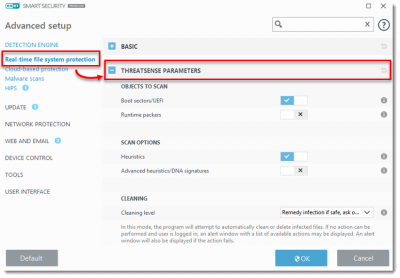
Press the F5 key on your keyboard. This will open the Advanced Setup window.
-
In the left panel, expand the following options:
Computer → Antivirus and antispyware → Real-time file system protection → Setup.
Step 2: Adjust the Cleaning Level
-
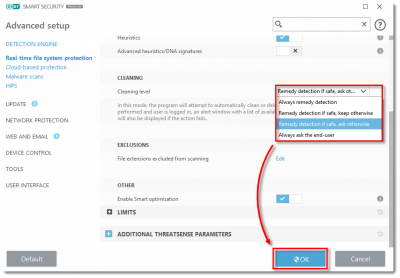
Click Cleaning, then use the slider to move between different cleaning levels.
-
Once done, click OK to save your settings.
By adjusting the cleaning level, you can control how ESET handles detected threats—whether it asks you before taking action or cleans files automatically.

Click Cleaning and move the slider to the left or right to adjust the cleaning level. Click OK to save your changes
Understanding Cleaning Levels in ESET NOD32
ESET provides three different cleaning levels: No Cleaning, Standard Cleaning, and Strict Cleaning. Each option changes how the antivirus responds when it detects a suspicious or infected file.
1. No Cleaning
In this mode, your ESET product will not automatically clean or delete any detected threats.
Instead, it will display an alert window whenever a threat is found, allowing you to choose from available actions such as clean, delete, or ignore.
This mode is ideal for advanced users or IT professionals who want full control over what the antivirus does with suspicious files.
2. Standard Cleaning (Recommended Default)
This is the recommended setting for most users.
In Standard Cleaning mode, ESET automatically attempts to clean or delete infected files.
If the antivirus cannot decide on the best action or if the automatic process fails, it will prompt you with an alert window. You can then manually select an action from the provided options.
This mode offers a balanced approach between security and user control, ensuring your system stays protected while avoiding unnecessary interruptions.
3. Strict Cleaning
Strict Cleaning mode is the most aggressive option.
In this mode, ESET automatically cleans or deletes infected files without user intervention.
The only exception applies to system files—if ESET detects an infection in a critical system file that cannot be cleaned, it will prompt you before taking action.
While this mode provides maximum protection, it can sometimes result in the deletion or blocking of safe application files. Therefore, it’s not ideal for users running custom software or local databases.
Setting Removable Media Cleaning to Automatic
You can also configure ESET to automatically clean removable media like USB drives and external disks. This helps prevent malware from spreading through portable devices.
To enable this option:
-
Open Advanced Setup again.
-
Navigate to:
Computer → Antivirus and Antispyware → Removable Media.
-
Change the option to Automatically clean.
-
Click OK to close the Advanced Setup window.
This ensures that any removable storage connected to your computer is automatically scanned and cleaned without requiring manual confirmation.
Cleaning levels
The different cleaning levels are No Cleaning, Standard Cleaning and Strict Cleaning. These modes govern the behaviour of the scanner when cleaning infected files. More information on each respective cleaning level is provided below:
No Cleaning: In this mode, your ESET product will not automatically clean any threats. It will prompt you with an alert window when a threat is detected and allow you to choose from a list of available actions.
Standard Cleaning: This is the recommended (default) mode. In this mode, your ESET product will automatically clean or delete infected files. If it is not possible to select the correct action automatically, you will be prompted with an alert window that will allow you to select from a list of available actions. You will also be prompted to choose an action if the predefined action could not be completed.
Strict Cleaning: In this mode, your ESET product will automatically clean or delete infected files without user intervention; the only exceptions are system files. If the scanner detects an infected system file that cannot be cleaned, you will be prompted with an alert window that will allow you to select from a list of available actions.
To set removable media cleaning Automatically
- On your Computer Go to Advance setup –> Computer –> Antivirus and Anti Spyware –> Removable media
- Change option to Automatically clean
- Click OK to close Advanced setup
For other IT solutions and Tips visit our blog www.chipin.ae/blog