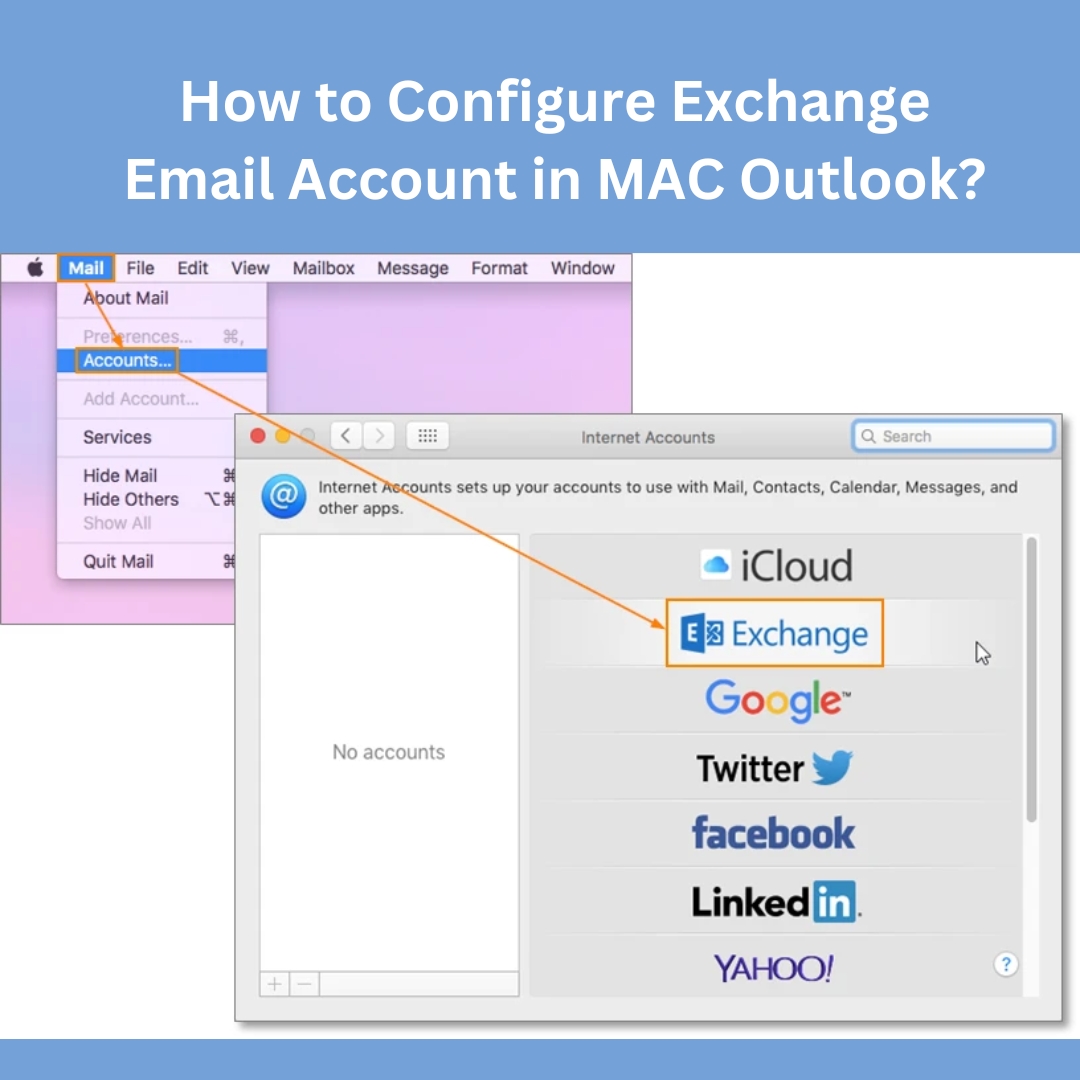
How to Configure Exchange Email Account (office365) in MAC Outlook
Please find the attached document for detailed information.
Steps To Configure Exchange Email Account in MAC Outlook
1. When you open Outlook for the very first time you will see the window below. Check the box to make Outlook your default email client and then choose Continue (you can also choose Add Account to immediately start setting up your account with the steps below starting at step 4).
2. With Outlook now open, you can access the account setup in two different ways.
The first and quicker method is by choosing Tools from your Outlook menu bar (make sure Outlook is the active application to view its menu) and then select Accounts…
The second method is by choosing Outlook from the menubar (again, make sure Outlook is the active application to view its menu), and selecting Preferences…
3. Choose Accounts under the “Personal Settings” section. This Preferences window is where you have options to change many things such as fonts, notifications, rules, signatures, and much more.
4. On the Accounts window, choose Exchange Account.
5. You will see the window below. Enter the following information:
E-Mail Address: Your email address
Method: User Name and Password
User Name: Staff\your username (Make sure to include the staff\, the backslash being found under the delete/backspace key on your keyboard, not the one that is shared with the ? key).
Password: Your current password
Leave “Configure automatically” checked and click Add Account.
6. Outlook will now attempt to connect to the Exchange server. Please note that this might take a few minutes. Once it connects and verifies your information, you will see the window below. You do not need to change anything here, although feel free to change the Account description if you so choose to. Close the window by clicking the red close button in the upper left corner. You are now set up to use Outlook on your Mac. Please give the application a few minutes to pull in your email from the server.
How-to-Configure-Exchange-Email-Account-office365-in-MAC-Outlook