This article from Chipin will show you a way to troubleshoot the Etisalat plug-and-play connection problems with Linksys routers. Follow the steps under for commands:
Step 1:
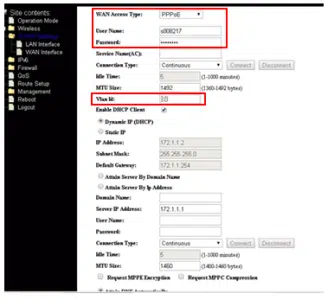
Log in to the web-based setup page of your Etisalat router to obtain the information you need. NOTE: Usually, you can access the Etisalat router through 192.168.1.1 (refer to the router’s label or get the information from Etisalat about the username and password).
WAN Access Type
User Name
Password
Important for Troubleshooting:
Make sure to write down the correct information provided by Etisalat before you configure the Linksys router.
Step 2:
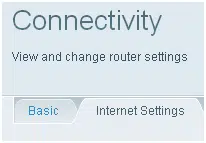
After checking the necessary values from the Etisalat router, log in to your Linksys router’s web-based setup page then click Connectivity > Internet Settings.
Step 3:
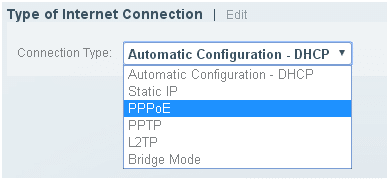
Click Edit and select PPPoE as your Type of Internet Connection.
Step 4:
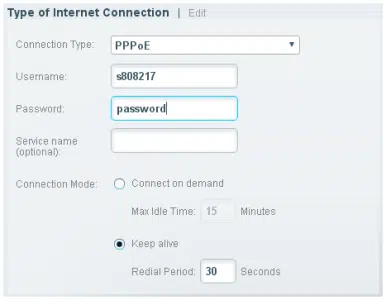
Enter the PPPoE Username and Password provided by Etisalat.
Step 5:
Click or
Step 6:
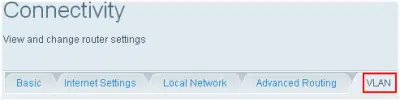
Click the VLAN tab under Connectivity.
Step 7:
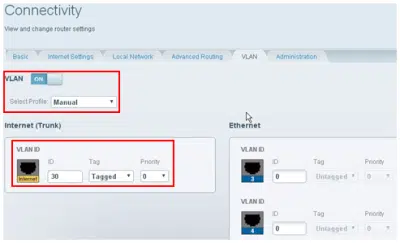
Set VLAN to ON. From the Manual Profile, enter the VLAN ID that you obtained from the Etisalat router then set Tag to Tagged.
Step 8:
Click or wait if your router reboots/restarts to save settings.
NOTE: You can enjoy Internet access but will lose the remote management function that was available and supported by the Etisalat router. However, you can always take advantage of the Linksys Smart Wi-Fi Account which is a free service that comes with the Linksys Smart Wi-Fi Routers. It will allow secure access to your home network from a browser or mobile device anytime and anywhere.
Check Physical Connections:
Ensure that all cables are securely connected to the appropriate ports on both the Etisalat Plug and Play device and the Linksys router.
Power cycle both the Etisalat device and the Linksys router by unplugging them, waiting for 10-15 seconds, and then plugging them back in.
Verify Internet Connection from Etisalat:
Connect a computer directly to the Etisalat device and check if you can access the internet. This helps determine if the issue lies with the Etisalat connection.
Access Linksys Router Settings:
Connect to the Linksys router’s web interface using a web browser. Typically, you can do this by entering the router’s IP address (commonly 192.168.1.1) in the browser’s address bar.
Log in with the router’s username and password. If you haven’t changed these, the default credentials may be admin/admin or admin/password.
Check WAN Settings:
In the Linksys router settings, navigate to the WAN or Internet settings section.
Ensure that the router is set to obtain an IP address automatically (DHCP) unless Etisalat provides you with specific static IP settings.
Clone MAC Address:
Some ISPs bind the service to the MAC address of the initially connected device. In the Linksys router settings, look for a MAC Address Clone option and enable it. Clone the MAC address of the device that was initially connected to the Etisalat device.
Update Firmware:
Check if there’s a firmware update available for your Linksys router. If so, update the firmware to the latest version. This can often resolve compatibility issues and improve overall performance.
Contact Etisalat Support:
If the issue persists, contact Etisalat support. They may provide specific settings or instructions for connecting third-party routers to their network.
Factory Reset:
As a last resort, you can perform a factory reset on your Linksys router. This will reset all settings to default. Afterward, you’ll need to reconfigure the router with your preferences.
Consider Etisalat Router:
Etisalat may have specific requirements or configurations for third-party routers. Consider using the router provided by Etisalat to ensure compatibility and easier support.
To learn more visit and contact Chipin IT Solutions the best IT Services Company in Dubai UAE.
Get a Free IT Consultation
Your goals. Our expertise. Perfect solutions.
Cybersecurity & EDR Solutions
Cloud & Microsoft 365 Migration
IT AMC & Managed Support
Office IT Setup & Relocation
17+
Years in Dubai
999+
Clients Served
4.9
Google Rating
SPEAK WITH AN EXPERT
Fill in your details
Your information is secure. We reply within 2 hours.





 or
or